Microsoft 365 License Right-Sizing: Stop Overpaying and Maximize ROI
min read
Microsoft 365 License Right-Sizing: Stop Overpaying and Maximize ROI
Application development
May 4, 2026
Written by
Team PSI
Published on
May 4, 2026
Reduce Waste. Optimize Licenses. Take Control of Your IT Spend.
Many organizations pay for Microsoft 365licenses they don’t fully use. Without visibility into user activity, costsincrease while value declines.
With a data-driven right-sizing approach, you can align licenses to real usage, eliminate inefficiencies, and unlock significant savings.
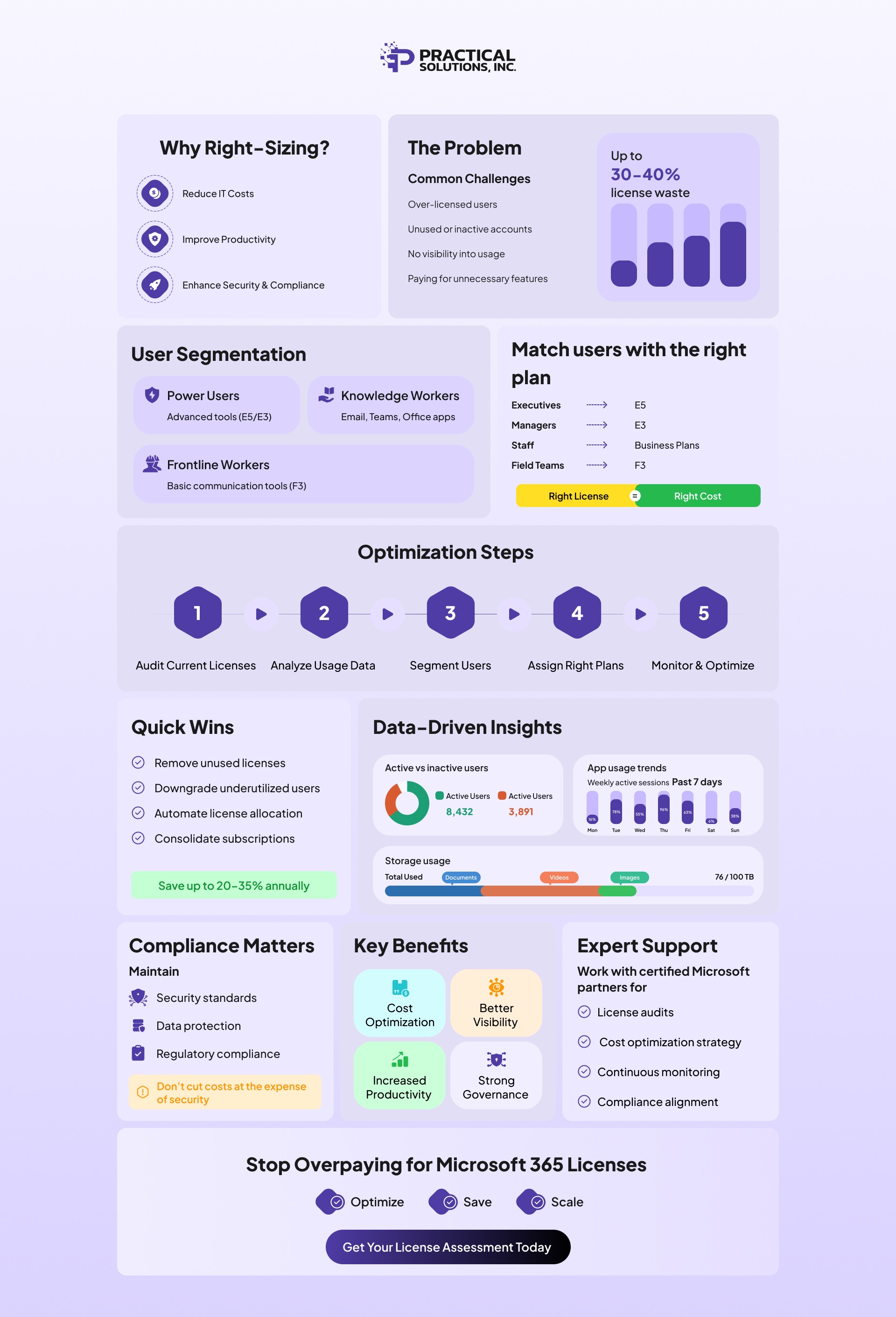
✔ Identify unused and inactive licenses ✔ Match users to the right plans (E3, E5, Business, F3) ✔ Reduce costs by 20–30%annually ✔ Improve compliance and governance
Are You Paying for Microsoft 365 Licenses Nobody Is Actually Using?
Microsoft 365 license right-sizing is the process of aligning Microsoft 365 licenses with actual user activity to reduce waste and optimize costs.
Most organizations overspend due to:
Over-licensing premium plans (E3/E5)
Inactive or unused accounts
Limited visibility into usage data
As a result, 20–35% of licenses are typically underutilized, leading to unnecessary SaaS spend.
By implementing a structured right-sizing strategy, businesses can:
Reduce licensing costs by up to 30%
Improve utilization across teams
Strengthen IT governance and compliance
This guide explains how to audit, optimize, and continuously manage Microsoft 365 licenses for maximum ROI.
Microsoft 365 license right-sizing is the process of auditing your organization's Microsoft 365 (formerly Office 365) subscriptions to identify mismatches between assigned license tiers and actual user activity — then reassigning, downgrading, or reclaiming licenses to match real-world usage patterns.
In practical terms: if a user holds a Microsoft 365 E5 license (~$57/user/month) but only uses Outlook, Teams, and SharePoint — all available in E3 at ~$36/user/month — that organization overpays $21 per user every month for features nobody uses.
Right-sizing uses Microsoft Entra ID sign-in data, Microsoft 365 Admin Center usage reports, and Microsoft Productivity Score to match each user to the minimum viable license that covers their actual workload.
Through right-sizing, organizations can systematically:
Reclaim unused or unassigned license seats
Downgrade over-licensed users from E5/E3 to appropriate plans
Eliminate redundant third-party SaaS subscriptions that duplicate Microsoft 365 features
Improve software asset management (SAM) visibility and IT governance
Prepare for accurate Microsoft Enterprise Agreement (EA) true-up negotiations
Why Microsoft 365 License Right-Sizing is Important
Most organizations accumulate licensing waste gradually and invisibly. A new hire triggers a license purchase; an employee leaves but their account remains active; a department head requests E5 licenses for the entire team without a usage-based justification.
Common causes of Microsoft 365 overspending
Over-licensing on premium tiers — Assigning E5 ($57/user/month) to users who only need E1 ($10/user/month) features represents a 470% premium for unused capabilities.
Inactive and orphaned accounts — Industry benchmarks show 25–35% of assignedM365 seats show zero activity within any 90-day window (Forrester Research, 2023).
Limited usage visibility — IT teams without a structured Microsoft Entra ID reporting workflow cannot identify which users are active across which workloads.
Redundant third-party subscriptions — IDC estimates the average organization wastes $42/user/year on SaaS tools that duplicate Microsoft 365 capabilities already in their subscription (IDC, 2023).
Poorly timed EA renewals — Auto-renewing without a renegotiation strategy. Engaging Microsoft6–9 months before the EA anchor date consistently achieves 8–15% discount improvements (Gartner, 2023).
The financial case for optimization:
Reclaim unused seats
Right-size SKU tiers
EA renegotiation
Up to 82% waste recovery
18–25% annual cost reduction
8–15% discount improvement
Sources: Gartner (2023), Forrester Research(2023), IDC (2023), Microsoft licensing data (2024).
How to Right-Size Microsoft 365 Licenses: A 5-Step Process
Each step can be completed using native Microsoft admin tools included in your existing subscription — no third-party tooling required.
Step 1: Audit Your Current License Inventory
Pull a complete snapshot of every active Microsoft 365 subscription your organization holds via the Microsoft 365 Admin Center (admin.microsoft.com) under Billing > Licenses.
Export the Active Users report filtered to the last 90 days
Flag all accounts with zero logins in the trailing 90-day period using Microsoft Entra ID sign-in logs
Identify shared mailboxes, service accounts, and room resources holding full user licenses unnecessarily
Step 2: Analyze User Behavior with Microsoft Admin Reporting Tools
Usage data tells you what is actually being used. Microsoft provides workload-level adoption analytics through the Microsoft 365 Admin Center Usage Reports and the Microsoft Productivity Score dashboard — both included at no additional cost.
Track login activity per user across all Microsoft 365 workloads
Measure storage consumption to identify over-provisioned OneDrive or SharePoint allocations
Use Microsoft 365 Productivity Score to benchmark adoption against industry peers
Step 3: Segment Users by Role and Actual Workload Needs
Group users into license personas based on the features they genuinely use:
Power Users (E5 or E3) — Executives, finance, legal, senior IT: actively use Defender, Purview, Power BI Pro, and Teams Phone.
Knowledge Workers (E3 or Business Standard/Premium) — Office-based employees using Outlook, Teams, SharePoint, OneDrive. Most common — and most frequently over-licensed onto E5.
Frontline Workers (F3 orF1) — Retail staff, field technicians, healthcare workers needing Teams, Shifts, and communication tools but not desktop Office apps.
Step 4: Map Users to the Correct Microsoft 365 Plan
Based on the user segmentation above, reassign licenses to match each user's actual workload tier. The table below shows the recommended plan mapping:
User Type
Recommended Plan
Key Included Features
Monthly Price/User
Power users (security/compliance/analytics)
Microsoft 365 E5
Defender, Purview, Power BI Pro, Teams Phone
~$57
Knowledge workers (standard collaboration)
Microsoft 365 E3
Desktop Office apps, Intune, Entra ID P1
~$36
SMB employees (core productivity)
M365 Business Premium
Defender for Business, Intune, Entra ID P1
~$22
Basic office users
Microsoft 365 Business Standard
Web + desktop Office, Teams, SharePoint
~$12.50
Frontline / field workers
Microsoft 365 F3
Teams, Shifts, Frontline Portal
~$8
Source: Microsoft commercial pricing, April2024. Prices may vary by region and EA volume discount.
Microsoft 365 E3 vs E5: Which Plan Do You Need?
Choosing between Microsoft 365 E3 and E5 is a critical step in license right-sizing. While E5 includes advanced security, compliance, and analytics features, many users don’t fully utilize them—making E3 a more cost-effective option for standard business needs.
The goal is to match each user to the lowest-cost license that meets their actual usage.
Microsoft 365 E1 vs E3 vs E5 Comparison
Feature
E1
E3
E5
Price
$10/user/month
$36/user/month
$57/user/month
Office Apps
Web only
Desktop + Web
Desktop + Web
Email (Exchange Online)
✓
✓
✓
Microsoft Teams
✓
✓
✓
OneDrive & SharePoint
✓
✓
✓
Device Management (Intune)
✗
✓
✓
Identity & Access (Entra ID)
Basic
P1
P2
Advanced Security (Defender)
✗
Limited
Full Suite
Compliance (Microsoft Purview)
✗
Basic
Advanced
Analytics (Power BI Pro)
✗
✗
Included
Microsoft Teams Phone
✗
Add-on
Included
Step 5: Monitor, Optimize, and Govern Continuously
License right-sizing is not a one-time project — it is an ongoing governance practice. Organizations that implement a quarterly review cadence and automate license reclamation on user offboarding sustain savings indefinitely.
Conduct quarterly Microsoft 365 Admin Center usage reviews
Automate license removal when accounts are disabled in Microsoft Entra ID
Set inactive-user alerts for accounts with no sign-in activity for 30+ days
Align license procurement with verified headcount, not projected hiring plans
Assign a Software Asset Management (SAM) owner within IT
Quick Wins: Immediate Actions to Reduce M365 Costs
These four actions can be completed within 30days and typically generate 20–35% annual savings.
Remove unused licenses — Reclaim seats from inactive or offboarded users identified in Step1
Downgrade under utilized users — Move E5 users who only use basic workloads down to E3 or Business Standard
Consolidate subscriptions — Eliminate third-party tools that duplicate Microsoft 365 features(e.g., Zoom if Teams is fully deployed; Box if SharePoint/OneDrive is active)
Save up to 20–35% annually from Quick Wins alone
Who should Implement Microsoft 365 License Right-Sizing?
SMBs (50–500 seats) — Even a 100-seat organization can save $1,200–$3,600/year by migrating a portion of users to Business Standard or F3.
Large enterprises (500+seats, EA customers) — A 1,000-seat organization can recover$43,000–$125,000 annually through right-sizing combined with EA negotiation (Gartner benchmarks).
IT managers and system administrators — Primary executors of the audit and reclamation process.
Finance teams and CIOs — SaaS management is now a top-three IT budget line item form id-market organizations (Gartner, 2023).
Frequently Asked Questions
Most organizations reduce Microsoft 365 licensing spend by 20–30% through a structured right-sizing program (Gartner, 2023). A 500-seat organization can typically recover $25,000–$75,000 annually by combining seat reclamation, SKU tier adjustments, and EA renegotiation. Exact savings depend on the proportion of over-licensed users and current unused seat count.
E1 (~$10/user/month) provides web-based Office apps, Teams, and SharePoint. E3 (~$36) adds desktop Office installs, Intune, and Entra ID Plan 1. E5 (~$57) adds Defender for Office 365 Plan 2, Purview compliance tools, Power BI Pro, and Teams Phone. Right-sizing ensures each user is on the lowest tier that covers their actual feature usage.
Three native tools (included in your subscription) are sufficient:
(1) M365 Admin Center > Reports > Active Users for per-workload activity
(2) Microsoft Entra ID > Sign-in logs — filter by date to find dormant accounts
(3) Microsoft 365 Productivity Score for adoption of benchmarks.
These three sources provide sufficient data for a complete baseline audit at no additional cost.
The optimal window is 6–9 months before your EA anchor date. Within this window, Microsoft's account team has commercial flexibility to offer pricing adjustments and credits. Entering renegotiation with a documented consumption audit and awareness of alternative pricing consistently results in 8–15% cost improvements (Gartner, 2023).
Copilot adds ~$30/user/month. Microsoft's research shows high-frequency users save an average of 1.2 hours/week — worth ~$3,744/user/year at a $60/hour fully loaded cost. However, this return only materializes for roles with significant writing, meeting, and synthesis demands. The recommended approach: pilot with 20–30 targeted users, measure actual time savings, and expand only where documented gains exceed the $360/user/year license cost.
Optimize Costs, Maximize ROI with Microsoft 365
Microsoft 365 license right-sizing is a strategic approach to ensuring that every dollar of your Microsoft investment is tied to measurable business value. By auditing license consumption, aligning subscriptions to actual user roles, activating bundled tools that replace paid third-party alternatives, and renegotiating your Enterprise Agreement with full consumption data in hand, organizations can reduce Microsoft licensing spend by 20–30% while simultaneously improving security posture, compliance coverage, and employee productivity.
The data required to begin is already available — in the Microsoft 365 Admin Center, Microsoft Entra ID sign-in logs, and the Productivity Score dashboard. The first step costs nothing but an hour of focused analysis.
Microsoft 365 License Right-Sizing: Stop Overpaying and Maximize ROI
Team PSI
May 4, 2026
May 4, 2026
April 22, 2026
Optimize Microsoft 365 licenses, cut costs up to 30%, and remove unused subscriptions. Includes audit checklist, E3 vs E5 comparison, and tips..
Industries
https://www.ps4b.com/
Ready to Modernize your IT Infrastructure?
Partner with PSI's senior engineers to design a cloud strategy that reduces costs, strengthens security, and delivers measurable ROI. Organizations in Washington D.C., Virginia, and Maryland can schedule a consultation directly with a senior PSI strategist — not a sales representative.
No obligation cloud or AI readiness assessment available
Direct access to senior engineers from day one
Typical Microsoft licensing audit completed within 30 days






.png)


